
Image Connector Applications Interface Specification
Version: 1.1.0
Contents
- Interface Definition of Camera Connectors
Interface Definition of Camera Connectors
This document outlines the northbound interface (indicating north in the automation pyramid) of a camera connector application and vision-driven applications. It covers the configuration of a connected camera and the retrieval/streaming of images from this camera for further processing. The southbound interface of the camera connector is defined by the connector provider, dependent on the technology used (GigEVision, GenICam, USBVision, etc.), and is therefore not part of this document.
Version Handling and Compatibility
This document is versioned in a \<major>.\<minor>.\<patch> schema.
While patch and minor version increments must keep backwards compatibility with earlier versions of the standard, this may not be the case with an increment in the major version. The patch version must be incremented with every change in the document and is mainly used during incremental development of new features. Bigger changes in the document, like the addition of new commands or a large number of small additions, could be grouped to an increase in the minor version.
Regarding backwards compatibility, the following rules apply:
- Changes in commands are considered backwards compatible as long as using the old command still works and produces the same result.
- Changes to responses are considered backward compatible if the interpretation of the response is still valid without the additional entries.
- Adding MQTT and ZMQ topics is considered backwards compatible.
- Adding new Message Codes is considered backwards compatible. Messages with such codes can be ignored in older versions.
If a feature, command, or definition in this document is removed in a future standard version, it must be marked as being deprecated first and must stay present and usable for a defined amount of time until the feature may be removed. This would then cause a breaking change and therefore an increase in the major version.
Proprietary commands, replies, and fields can be added according to vendors' needs but must be prefixed by "cstm_" and must be compliant with the above-mentioned compatibility rules. Standard commands, replies, and fields must not start with this prefix.
!!! info "NOTICE Recommendation
Proprietary fields in proprietary commands do not need to add the prefix additionally.
General Definitions
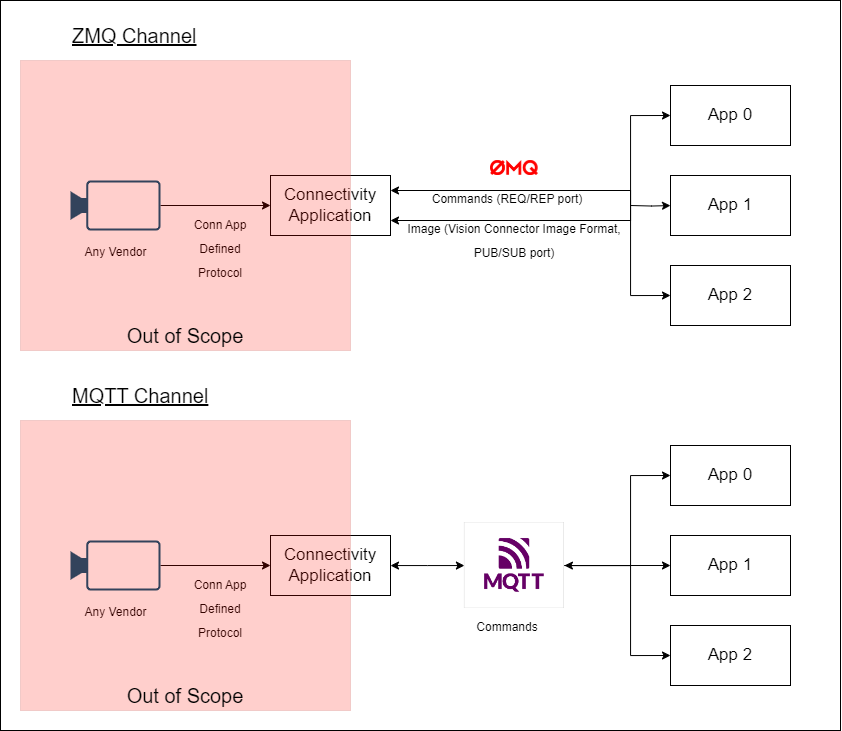
To facilitate data transfer between the camera connector and vision-driven applications, the currently supported communication channels are ZeroMQ (ZMQ) and MQTT. For enhanced integration, such as with Siemens Industrial Edge, supplementary interfaces like REST API could also be considered.
The connector application must possess two bind ZMQ ports and/or MQTT configurable connection parameters. These connections will be utilized for setting up the application, configuring the camera, defining image streaming options, and requesting images via software triggers. Images must adhere to the Vision Connector Image Format.
All used ports and servers must be configurable in the application configuration file.
The ZMQ ports (defaults: 5555 to REQ/REP and 5556 to PUB/SUB) must be documented in the application documentation. In the case of MQTT connections, the server, port, user, password and root topic should be configurable within the application.
The connector should be designed to support one or multiple cameras. This support must be thoroughly detailed in the application documentation and should include a dedicated topic structure for each camera.
The scope of this document is to define the interface protocols between vision-driven applications and camera connectivity applications. Communication specifics, camera protocols, camera setup, and application features are beyond the scope of this document.
All definitions in this document, if not explicitly stated as optional, are mandatory for compliant implementations.
Below is a schematic representation of the defined scope:
Topic Structure
ZMQ
When using ZMQ connections, the expected structure outlined below:
- To send commands, utilize single-frame messages sent to the REQ/REP port.
- The image streaming topic on the PUB/SUB port: device/{DeviceID}/stream
- For receiving human-readable application feedback, subscribe to topic on the PUB/SUB port (see also Application Logging): app/logging
- For receiving events which should be handled by the subscriber, subscribe to topic on the PUB/SUB port (see also Application Events): app/events
MQTT
For MQTT connections, the topic structure is as follows:
- To send commands, publish messages to: {MqttRoot}/app/request
- For receiving application command responses on: {MqttRoot}/app/response
- Subscribe to the topic for receiving human-readable application feedback: {mqttRoot}/app/logging
- For receiving events which should be handled by the subscriber: {MqttRoot}/app/events
The message content should be formatted in JSON, employing the message field names as property names for each call, as described in the subsequent chapters of this document.
Proprietary topics can be added according to vendors' needs but must be prefixed by "cstm_". Standard topics must not start with this prefix.
NOTICE
Recommendation
Proprietary (sub-)topics that fit into already standardized topics should be added to these as additional proprietary subtopics. If a new proprietary topic is introduced and is prefixed with "cstm_", proprietary subtopics of it may not add the prefix additionally.
Old topic structure from V1.0.0 is deprecated and will be removed in the next version.
Device Identification
To identify a device, the connector application should specify, in its Camera Discovery documentation, the allowed fields for identification. Typically, expected fields include the serial number (SerialNumber field), user identification (UserDefinedName field), IP address (for GigE devices, in the IPAddress field), and MAC address (for GigE devices, in the MACAddress field). While these fields are commonly used, they are not mandatory, may not be available, and the connector application may introduce additional or alternative identification fields.
NOTICE
The MAC address is typically delimited by ":" (e.g., 20:87:56:70:95:04).
In the subsequent documentation, the term "DeviceID" refers to the identifying string that was used for a camera device upon opening it. This exact string will then be used for identifying the opened camera device while it is used and until it is closed again. Only after that the camera device can be opened and used again with a different DeviceID. The value of the DeviceID can be one of the fields returned during the device info (see more details in chapter Open Camera Connection).
Using a different DeviceID for a camera device while it is open, even if it refers to the same device, may lead to errors. Exceptions to this rule are allowed if documented by the application.
DeviceIDs must not start with the proprietary suffix "cstm_" to avoid conflicts.
The following identifiers can't be used as a DeviceID:
- "request"
- "response"
- "logging"
- "app"
- "device"
Messaging
The message exchange will be based on JSON messages. The subsequent sections will outline the minimum content for the message payload, where the fields are properties for the payload JSON, and any additional fields might be utilized as specified in the connector application documentation, in accordance with the vendor's requirements. Therefore, subscribers must make sure that their JSON parser accepts additional fields on top of the described ones.
For ZMQ, the JSON string payload will be encoded into a UTF-8 single-frame message.
In MQTT messages, the JSON payload serves as the content of the message to be sent.
Vision Connector Image Format
To standardize image transfer between camera streaming applications and image-driven applications, the following format shall be used for transferring images. The ZMQ message consists of a multipart message with each frame/part described below.
This message format is prepared to support multiple stream cameras.
Message Envelope
| Frame | Field | Description | Type |
|---|---|---|---|
| 1 | topic | Device identification. | Binary String (UTF-8) to identify the device in the following syntax: device/{DeviceID}/stream |
| 2 | metadata | Metadata | Binary Metadata JSON (UTF-8) |
| 3 | image | Image 1 | Binary |
| 4 ... n | image | Image n – For multi-stream camera | Binary |
Metadata JSON
| Field | Optional | Type | Default | Description |
|---|---|---|---|---|
| version | No | String | 1 | Metadata format version |
| count | No | Integer | 1 | Number of images in the message |
| timestamp | No | String | -- | Date and Time string UTF-8 ISO8601. Application host datetime. |
| customfields | Yes | String | -- | Custom field to be defined by the app creator and handled by the consumers. Might be a simple string or JSON string or else. |
| detail | No | Image Detail Object Array | -- | Image details |
Image Detail Object
| Field | Optional | Type | Default | Description |
|---|---|---|---|---|
| id | No | String | -- | Unique image identifier. Suggested mnemonic format like {camid}_{camstream}_{datetime} |
| seq | No | Integer | -- | Sequential number for the camera image. Starting at 1, incremented by 1 on each frame grabbed. |
| height | No / Yes (encoded formats) | Integer | -- | Image Height |
| width | No / Yes (encoded formats) | Integer | -- | Image Width |
| formatns | Yes | String | Genicam | Image format namespace. For GenICam pixel format use Genicam and Compressed for compressed formats. 2 |
| format | No | String | -- | Image format 1 2 3 |
| linepadding | Yes | Integer | 0 | Number of bytes added at the end of the byte stream to reach a multiple of 4 bytes. Eg. an image with 61 pixels, mono8, will have a line padding of 3, filling the stream to reach 64 bytes. |
| timestamp | Yes | String5 | -- | Clock ticks informed by the camera.4 |
| metadata6 | Yes | String | -- | Image additional metadata field to be defined by the app creator and handled by the consumers. Might be a simple string or JSON string or else. |
1 For cameras using a GenICam standardized pixel format, it is recommended to use the GenICam Naming Convention as described in section 4.35 GenICam_PFNC_2_4.pdf.
2 Additional values can be supported once described in the application documentation.
3 Compressed formats shall be mentioned in the application documentation, being recommended in the fields corresponding to the file extension (e.g., "png", "jpg", "bmp").
4 Timestamps provided by the cameras are Ticks count. This can be referencing the Unix epoch or the number of Ticks since the camera is on or count of Ticks informed/in sync with the PTP server.
5 A string might be used since, in the PTP standard, the Tick count is expected to be an 80-bit number. However, the current GenICam protocol returns a 64-bit integer. A string will be more reliable for future implementations.
6 Cameras capable and with PTP enabled must inform the PTP synchronization status in the metadata. E.g.,
…
"metadata": "{'ptpstatus': 'locked'}"
…
Metadata Example
{
  "version": "1",
  "count": 2,
  "timestamp": "2014-01-09T13:35:34.000000000+0100",
  "customfields": "{'xfield1':1,'xfield2':'abc'}",
  "detail":[
    {
      "id":"mycamera_0_2014-01-09T13:35:34.000000000+0100",
      "seq": 3,
      "height": 60,
      "width": 80,
      "format": "png",
      "formatns": "Compressed",
      "timestamp": "123456",
      "metadata": "{'batchid':'batch1','stream':'lowdef'}"
    },
    {
      "id":"mycamera_1_2014-01-09T13:35:34.000000000+0100",
      "seq": 3,
      "height": 852,
      "width": 1280,
      "formatns": "Genicam",
      "format": "BGR8",
      "timestamp": "123456",
      "linepadding": 0,
      "metadata": "{'batchid':'batch1','stream':'raw'}"
    }
  ]
}
Camera Operation
General Definitions
Camera Operations are handled by sending JSON strings via MQTT or ZMQ according to the Topic Structure.
All operations have to be implemented by the connector application as long as the operation is not marked as "optional".
Proprietary operations and fields can be added according to vendors needs but must be prefixed by "cstm_". Operations and fields defined in this standard must not start with this prefix.
If a requested command or argument isn't supported by the vision connector (e.g., the command in the given Action field of the command is unknown) then the vision connector must reply with the return code 0x03000003 (see also Error message codes).
Getting List of Supported Commands
To get the full list of commands that are currently supported by the vision connector, the client can send following command.
Message Envelope For ZMQ Message
| Frame | Field | Description | Type |
|---|---|---|---|
| 1 | payload | Method payload | Binary String (UTF-8) |
Payload
| Field | Optional | Type | Description |
|---|---|---|---|
| TransactionID | Yes | String | Transaction identification. |
| Action | No | String | Method called. Fixed value GetSupportedCommands |
{
    "TransactionID": "123456",
    "Action": "GetSupportedCommands"
}
Response
| Frame | Field | Description | Type |
|---|---|---|---|
| 1 | payload | Response object | Binary String (UTF-8) |
Response Object
| Field | Optional | Type | Description |
|---|---|---|---|
| TransactionID | Yes | String | Transaction identification. |
| ReturnCode | No | Integer | Message code following Message Codes. |
| Message | Yes | String | Response message |
| SupportedCommandList | No | Array of Strings | Array of commands (the possible values for the Action field). |
{
    "TransactionID": "123456",
    "ReturnCode": 0,
    "Message": "Supported commands retrieved.",
    "SupportedCommandList":
    [
      "EnumerateDevices",
      "GetStatus",
      "OpenDevice",
      "CloseDevice",
      "StartStreaming",
      "StopStreaming",
      "GetParameterNames",
      "GetParameters",
      "SetParameters",
      "SetQuickParameters",
      "SoftwareTrigger",
      "GetUserSets",
      "LoadUserSet",
      "SaveUserSet",
      "SetDefaultUserSet",
      "SetDeviceConfig",
      "GetDeviceConfig",
      "GetSupportedCommands"
    ]
}
Camera Discovery
As the initial step to establish communication with a camera, it is necessary to check the available cameras on the connector. To achieve this, the connector shall be capable of discovering cameras (e.g., GigE cameras) and listing them for the user.
Message Envelope For ZMQ Message
| Frame | Field | Description | Type |
|---|---|---|---|
| 1 | payload | Method payload | Binary String (UTF-8) |
Payload
| Field | Optional | Type | Description |
|---|---|---|---|
| TransactionID | Yes | String | Transaction identification. |
| Action | No | String | Method called. Fixed value EnumerateDevices |
{
    "TransactionID": "123456",
    "Action": "EnumerateDevices"
}
Response
| Frame | Field | Description | Type |
|---|---|---|---|
| 1 | payload | Response object | Binary String (UTF-8) |
Response Object
| Field | Optional | Type | Description |
|---|---|---|---|
| TransactionID | Yes | String | Transaction identification. |
| ReturnCode | No | Integer | Message code following Message Codes. |
| Message | Yes | String | Response message |
| DeviceList | No | Array of Camera Devices | Array of camera devices. |
Camera Object
| Field | Optional | Type | Description |
|---|---|---|---|
| SerialNumber1 | Yes | String | Camera identification |
| UserDefinedName1 | Yes | String | Camera User-defined name |
| ModelName | No | String | Camera model |
| VendorName | No | String | Camera vendor |
| Interface | No | String | Camera interface U3V (USB3 Vision), CXP (CoaXPress), GEV (GigEVision), CamEmu (Emulation) |
| IPAddress | Yes | String | Camera IP address |
| MACAddress | Yes | String | Camera MAC address |
| {additional identification fields}1 | Yes | String | Additional device identification offered by the connector application. |
1 Device identification, must be informed on the documentation if they can be used as device identification or if there is additional fields that can be used.
{
    "TransactionID": "123456",
    "ReturnCode": 0,
    "Message": "Cameras found.",
    "DeviceList": [
        {
            "SerialNumber": "548451887",
            "UserDefinedName": "MyCam1",
            "ModelName": "Camera Model 1234",
            "VendorName": "The camera Factory",
            "Interface": "GEV",
            "IPAddress": "192.168.0.1",
            "MACAddress": "00:1A:2B:3C:4D:5E"
        }
    ]
}
Open Camera Connection
Usually, GenICam cameras demand the connection to be open before starting to set parameters and image streaming. This connection is an exclusive access, meaning that no other app can access the camera and change parameters or stream images.
A camera can be opened by specifying an identification string in the DeviceID field. The connector will then try to find a matching camera by searching for this identification string amongst the infos of the available cameras. The order in which it searches is the following:
- MACAddress
- SerialNumber
- IPAddress
- UserDefinedName
- ModelName
- VendorName
- Interface
Example:
An identification string is provided in the DeviceID field. Then the connector will first try to find a camera with a matching MACAddress. If none was found it will try to find a camera with a matching SerialNumber. It will continue with the other criteria until a matching camera can be found and try to open this camera.
If multiple cameras are found matching the same info then the connector will try to open the first one. It is up to the vision connector which camera is the first one and may even be randomly chosen.
If a camera was opened using a certain identification string then this identification string must be used in all DeviceID fields of all requests regarding this camera until it is closed again. A camera can't be opened with multiple identification strings at the same time.
Message Envelope For ZMQ Message
| Frame | Field | Description | Type |
|---|---|---|---|
| 1 | payload | Method payload | Binary String (UTF-8) |
Payload
| Field | Optional | Type | Description |
|---|---|---|---|
| TransactionID | Yes | String | Transaction identification. |
| Action | No | String | Method called. Fixed value OpenDevice |
| DeviceID | No | String | Device identification. |
{
    "TransactionID": "1232156",
    "Action": "OpenDevice",
    "DeviceID": "548451887"
}
Response
| Frame | Field | Description | Type |
|---|---|---|---|
| 1 | payload | Response object | Binary String (UTF-8) |
Response Object
| Field | Optional | Type | Description |
|---|---|---|---|
| TransactionID | Yes | String | Transaction identification. |
| ReturnCode | No | Integer | Message code following Message Codes. |
| Message | Yes | String | Response message |
{
    "TransactionID": "123456",
    "ReturnCode": 0,
    "Message": "Camera open."
}
Close Camera Connection
To close the camera connection, releasing the exclusive access and stopping any running image streaming, releasing the camera. It is not considered an error if no camera with the specified DeviceID is open or the camera has already been closed. However, an respective message is provided in the response.
Message Envelope For ZMQ Message
| Frame | Field | Description | Type |
|---|---|---|---|
| 1 | payload | Method payload | Binary String (UTF-8) |
Payload
| Field | Optional | Type | Description |
|---|---|---|---|
| TransactionID | Yes | String | Transaction identification. |
| Action | No | String | Method called. Fixed value CloseDevice |
| DeviceID | No | String | Device identification. |
{
    "TransactionID": "1232116",
    "Action": "CloseDevice",
    "DeviceID": "548451887"
}
Response
| Frame | Field | Description | Type |
|---|---|---|---|
| 1 | payload | Response object | Binary String (UTF-8) |
Response Object
| Field | Optional | Type | Description |
|---|---|---|---|
| TransactionID | Yes | String | Transaction identification. |
| ReturnCode | No | Integer | Message code following Message Codes. |
| Message | Yes | String | Response message |
{
    "TransactionID": "1232116",
    "ReturnCode": 0,
    "Message": "Camera closed."
}
Camera Parameter Configuration
Retrieving Parameter Names
A list of all parameter names is provided when requested by the application user by sending the following message. If namespaces are provided in the request then the parameter names in the response must be prefixed with the according namespace (see example below). Otherwise, no prefix will be added in the response.
Message Envelope For ZMQ Message
| Frame | Field | Description | Type |
|---|---|---|---|
| 1 | payload | Method payload | Binary String (UTF-8) |
Payload
| Field | Optional | Type | Description |
|---|---|---|---|
| TransactionID | Yes | String | Transaction identification. |
| Action | No | String | Method called. Fixed value GetParameterNames |
| DeviceID | No | String | Device identification. |
| NamespaceList | Yes | Array of String | Namespaces of the parameter lists to query the parameter names from (defaults to camera parameter list if omitted). Example: |
{
    "TransactionID": "2345645",
    "Action": "GetParameterNames",
    "DeviceID": "548451887",
    "NamespaceList": [
      "@CameraDevice",
      "@CameraInstance"
    ]
}
Response
| Frame | Field | Description | Type |
|---|---|---|---|
| 1 | payload | Response object | Binary String (UTF-8) |
Response Object
| Field | Optional | Type | Description |
|---|---|---|---|
| TransactionID | Yes | String | Transaction identification. |
| ReturnCode | No | Integer | Message code following Message Codes. |
| Message | Yes | String | Response message |
| ParameterNameList | No | Array of String | String array containing the full parameters names (including the namespace prefixes for the node map if namespaces were provided in the request) |
{
  "TransactionID": "2345645",
  "ReturnCode": 0,
  "Message": "Parameter names retrieved successfully",
  "ParameterNameList": [
    "@CameraDevice/Width",
    "@CameraDevice/Height",
    "@CameraDevice/PixelFormat",
    "@CameraInstance/BufferHandlingMode",
    ...
  ]
}
Retrieving Parameter List
A list of parameters is provided when requested by the application user. To request the parameter list, the user must send the following message.
Message Envelope For ZMQ Message
| Frame | Field | Description | Type |
|---|---|---|---|
| 1 | payload | Method payload | Binary String (UTF-8) |
Payload
| Field | Optional | Type | Description |
|---|---|---|---|
| TransactionID | Yes | String | Transaction identification. |
| Action | No | String | Method called. Fixed value GetParameters |
| DeviceID | No | String | Device identification. |
| ParameterList | No | Array of String | The list of parameters that shall be read. |
{
    "TransactionID": "2345645",
    "Action": "GetParameters",
    "DeviceID": "548451887",
    "ParameterList": [
        "Width",
        "Height"
    ]
}
Response
| Frame | Field | Description | Type |
|---|---|---|---|
| 1 | payload | Response object | Binary String (UTF-8) |
Response Object
| Field | Optional | Type | Description |
|---|---|---|---|
| TransactionID | Yes | String | Transaction identification. |
| ReturnCode | No | Integer | Message code following Message Codes. |
| Message | Yes | String | Response message |
| ParameterList | No | Parameter Object Array | Parameter Object Array containing the parameters details |
Parameter Object
| Field | Optional | Type | Description |
|---|---|---|---|
| Name | No | String | Unique parameter name. |
| DisplayName | Yes | String | Displayable name of the parameter for user interface. |
| Type | No | String | Parameter value type. Possible values: String, Integer, Float, Enumeration, Boolean, Command |
| Value | Yes | String/Int/Float/Bool | Current defined value. On enumerations, it is the string defined. Is not available if Type is Command or Readable is True. |
| IntValue | Yes | Integer | On enumerations, it is the integer defined. |
| Readable | No | Boolean | Flag indicating if the parameter can be read. Be aware that the readable flag depends of the current camera state. |
| Writable | No | Boolean | Flag indicating if the parameter can be written. Be aware that the writable flag depends of the current camera state. |
| Minimum | Yes | Int/Float | Minimum allowed value for numeric type parameters |
| Maximum | Yes | Int/Float | Maximum allowed value for numeric type parameters |
| Increment | Yes | Int/Float | Allowed increment for the parameter. |
| Representation | Yes | String | Information on how this parameter should be represented in a user interface. This is only available for integer and float parameters. Possible values: Linear, Logarithmic, PureNumber, Boolean, HexNumber, IPV4Address, MACAddress |
| Alias | Yes | String | Name of an alias parameter. An alias parameter represents the same functionality but in a different form (e.g., a float parameter could have an integer parameter as an alias). |
| EnumEntries | Yes | Enum Entries Array | Array containing the entries available for the parameter. This is used by parameters that use enumerations. |
Enum Entries
| Field | Optional | Type | Description |
|---|---|---|---|
| DisplayName | Yes | String | This represents the name of the property to the user |
| Value | No | String | Parameter value that needs to be used to set the parameter value |
| IntValue | No | Integer | Integer value of the enum entry |
| Description | Yes | String | Enum entry description. |
{
  "TransactionID": "2345645",
  "ReturnCode": 0,
  "Message": "Parameters read successfully",
  "ParameterList": [
    {
      "Name": "Width",
      "DisplayName": "Width",
      "Type": "Integer",
      "Value": 1024,
      "Writable": true,
      "Minimum": 1,
      "Maximum": 4096,
      "Increment": 1,
      "Representation": "Linear",
      "Alias": "ImageWidth"
    },
    {
      "Name": "PixelFormat",
      "DisplayName": "Pixel Format",
      "Type": "Enumeration",
      "Value": "Mono8",
      "IntValue": 17301505,
      "Writable": true,
      "EnumEntries": [
        {
          "DisplayName": "Mono 8",
          "Value": "Mono8",
          "IntValue": 17301505,
          "Description": "This enumeration value sets the pixel format to Mono 8."
        },
        {
          "DisplayName": "Mono 10",
          "Value": "Mono10",
          "IntValue": 17825795,
          "Description": "This enumeration value sets the pixel format to Mono 10."
        },
        {
          "DisplayName": "Mono 12",
          "Value": "Mono12",
          "IntValue": 17825797,
          "Description": "This enumeration value sets the pixel format to Mono 12."
        },
        {
          "DisplayName": "Mono 16",
          "Value": "Mono16",
          "IntValue": 17825799,
          "Description": "This enumeration value sets the pixel format to Mono 16."
        }
      ]
    }
  ]
}
Setting Camera Parameters
To set the parameters, the user can send the message described in this chapter. It is possible to update a range of parameters; however, any error that may occur shall return the camera to the original state without applying any modification.
Enumerations parameter types might be also defined using the human-readable value. For example, setting the pixel format using the value as Mono8, despite the enumeration integer value.
For String and Integer parameters, the connector expects an exact match for the set value. For float parameters, a difference of no more than 1% is allowed due to floating-point comparison. If the provided value falls outside the expected range, the setting call will return an error.
When using Command parameters, providing values has to result in an error message.
The list of set values will be returned in the response message.
Message Envelope For ZMQ Message
| Frame | Field | Description | Type |
|---|---|---|---|
| 1 | payload | Method payload | Binary String (UTF-8) |
Payload
| Field | Optional | Type | Description |
|---|---|---|---|
| TransactionID | Yes | String | Transaction identification. |
| Action | No | String | Method called. Fixed value SetParameters |
| DeviceID | No | String | Device identification. |
| ParameterList | No | Parameter Object Array | Object to encapsulate the parameters to update. |
Parameter Object
| Field | Optional | Type | Description |
|---|---|---|---|
| Name | No | String | Unique Parameter Name2 |
| Value1 | No / Yes (for command parameters only) | String/Int/Float/Bool | New value (the Value field must not be used for command parameters and must be used for all other parameter types) |
1On enumerations, it can be the integer value or can also be the symbolic name, refer to IntValue Retrieving Parameter List. 2While it is recommended to use the unique parameter name, retrieved in Retrieving Parameter List, applications may implement abbreviated parameter names as shortcuts to simplify the parameter settings or shortcuts to access multiple node maps. These shortcuts should be documented in the connector documentation.
{
    "TransactionID": "123567",
    "Action": "SetParameters",
    "DeviceID": "548451887",
    "ParameterList":[
        {"Name": "Width", "Value": 800},
        {"Name": "Height", "Value": 600},
        {"Name": "PixelFormat", "Value": "Mono8"} //Setting using the human-readable string. This could be also the correspondent enum integer.
    ]
}
Response
| Frame | Field | Description | Type |
|---|---|---|---|
| 1 | payload | Response object | Binary String (UTF-8) |
Response Object
| Field | Optional | Type | Description |
|---|---|---|---|
| TransactionID | Yes | String | Transaction identification. |
| ReturnCode | No | Integer | Message code following Message Codes. |
| Message | Yes | String | Response message |
| ParameterList | No | Parameter Object Array | Object to encapsulate the parameters to update. |
Parameter Object
| Field | Optional | Type | Description |
|---|---|---|---|
| Name | No | String | Unique Parameter Name2 |
| Value | No | String/Int/Float/Bool | New value |
{
    "TransactionID": "123567",
    "ReturnCode": 0,
    "Message": "Parameters updated.",
    "ParameterList":[
        {"Name": "Width", "Value": 800},
        {"Name": "Height", "Value": 600},
        {"Name": "PixelFormat", "Value": "Mono8"}
    ]
}
Camera Quick Settings
Additionally to the parameters settings, the quick setting feature provides a way to quickly define the most commonly used parameters. These parameters use common known names, and the connector is expected to map them internally to the camera correspondent parameter.
Message Envelope For ZMQ Message
| Frame | Field | Description | Type |
|---|---|---|---|
| 1 | payload | Method payload | Binary String (UTF-8) |
Payload
| Field | Optional | Type | Description |
|---|---|---|---|
| TransactionID | Yes | String | Transaction identification. |
| Action | No | String | Method called. Fixed value SetQuickParameters |
| DeviceID | No | String | Device identification. |
| Width | Yes | Integer/String | Image width1 |
| PixelFormat | Yes | Integer/String | Pixel format1,2 |
| Height | Yes | Integer/String | Image Height1 |
| Gain | Yes | Float/Int/String | Gain1. The string Auto can be used to activate automatic gain. |
| ExposureTime | Yes | Float/Int/String | Exposure time in microseconds1. The string Auto can be used to activate automatic exposure. |
1 Camera dependent values, invalid values shall be informed on the returning error message. 2 GenICam standardized pixel format, according to the GenICam Naming Convention as described in section 4.35 GenICam_PFNC_2_4.pdf.
{
    "TransactionID": "23456435",
    "Action": "SetQuickParameters",
    "DeviceID": "548451887",
    "Width": 800,
    "Height": 600,
    "Gain": "Auto",
    "PixelFormat": "Mono8",
    "ExposureTime": 234.5
}
Response
| Frame | Field | Description | Type |
|---|---|---|---|
| 1 | payload | Response object | Binary String (UTF-8) |
Response Object
| Field | Optional | Type | Description |
|---|---|---|---|
| TransactionID | Yes | String | Transaction identification. |
| ReturnCode | No | Integer | Message code following Message Codes. |
| Message | Yes | String | Response message |
{
    "TransactionID": "23456435",
    "ReturnCode": 0,
    "Message": "Parameters updated."
}
Camera User Settings
The GenICam protocol allows the user to store parameter sets on the camera, and the connector must allow the user to save, load, and define the default user configuration to be used on camera restart.
Get Available Saved User Sets
Retrieve the available user sets on the camera.
Message Envelope For ZMQ Message
| Frame | Field | Description | Type |
|---|---|---|---|
| 1 | payload | Method payload | Binary String (UTF-8) |
Payload
| Field | Optional | Type | Description |
|---|---|---|---|
| TransactionID | Yes | String | Transaction identification. |
| Action | No | String | Method called. Fixed value GetUserSets |
| DeviceID | No | String | Device identification. |
{
    "TransactionID": "1232116",
    "Action": "GetUserSets",
    "DeviceID": "12323454754"
}
Response
| Frame | Field | Description | Type |
|---|---|---|---|
| 1 | payload | Response object | Binary String (UTF-8) |
Response Object
| Field | Optional | Type | Description |
|---|---|---|---|
| TransactionID | Yes | String | Transaction identification. |
| ReturnCode | No | Integer | Message code following Message Codes. |
| Message | Yes | String | Response message |
| UserSetList | No | User Set Object Array | Object containing the available parameter settings |
User Set Object
| Field | Optional | Type | Description |
|---|---|---|---|
| DisplayName | Yes | String | This represents the name of the user set to the user |
| Value | No | String | Parameter value that needs to be used to set the user set value |
| IntValue | No | Integer | Integer value of the user set |
| Description | Yes | String | User set description. |
{
    "TransactionID": "12323454754",
    "ReturnCode": 0,
    "Message": "User set retrieved.",
    "UserSetList": [
      {
        "DisplayName": "Default User Set",
        "Value": "Default",
        "IntValue": 0,
        "Description": "The default factory set can be loaded."
      },
      {
        "DisplayName": "User Set 1",
        "Value": "UserSet1",
        "IntValue": 1,
        "Description": "User set 1 can be saved, loaded, or configured."
      },
      {
        "DisplayName": "User Set 2",
        "Value": "UserSet2",
        "IntValue": 2,
        "Description": "User set 2 can be saved, loaded, or configured."
      },
      {
        "DisplayName": "User Set 3",
        "Value": "UserSet3",
        "IntValue": 3,
        "Description": "User set 3 can be saved, loaded, or configured."
      }
    ]
}
Load UserSet Configuration
To load a configured UserSet on the camera, the user can send the LoadUserSet message.
Message Envelope For ZMQ Message
| Frame | Field | Description | Type |
|---|---|---|---|
| 1 | payload | Method payload | Binary String (UTF-8) |
Payload
| Field | Optional | Type | Description |
|---|---|---|---|
| TransactionID | Yes | String | Transaction identification. |
| Action | No | String | Method called. Fixed value LoadUserSet |
| DeviceID | No | String | Device identification. |
| UserSet | No | Int/String | String according with the user setting enumeration or integer when using the integer value. |
{
  "TransactionID": "23423423563456",
  "Action": "LoadUserSet",
  "DeviceID": "548451887",
  "UserSet": "UserSet2"
}
Response
| Frame | Field | Description | Type |
|---|---|---|---|
| 1 | payload | Response object | Binary String (UTF-8) |
Response Object
| Field | Optional | Type | Description |
|---|---|---|---|
| TransactionID | Yes | String | Transaction identification. |
| ReturnCode | No | Integer | Message code following Message Codes. |
| Message | Yes | String | Response message |
{
  "TransactionID": "1232116",
  "ReturnCode": 0,
  "Message": "User set loaded."
}
Saving Configuration
After the camera is parametrized, the parameter set can be saved on the camera on user sets. To perform the storage, the user can send the SaveUserSet message.
Message Envelope For ZMQ Message
| Frame | Field | Description | Type |
|---|---|---|---|
| 1 | payload | Method payload | Binary String (UTF-8) |
Payload
| Field | Optional | Type | Description |
|---|---|---|---|
| TransactionID | Yes | String | Transaction identification. |
| Action | No | String | Method called. Fixed value SaveUserSet |
| DeviceID | No | String | Device identification. |
| UserSet | No | Int/String | String according with the user setting enumeration or integer when using the integer value. |
{
  "TransactionID": "489494",
  "Action": "SaveUserSet",
  "DeviceID": "548451842342387",
  "UserSet": "UserSet2"
}
Response
| Frame | Field | Description | Type |
|---|---|---|---|
| 1 | payload | Response object | Binary String (UTF-8) |
Response Object
| Field | Optional | Type | Description |
|---|---|---|---|
| TransactionID | Yes | String | Transaction identification. |
| ReturnCode | No | Integer | Message code following Message Codes. |
| Message | Yes | String | Response message |
{
  "TransactionID": "489494",
  "ReturnCode": 0,
  "Message": "User set updated."
}
Defining Default Configuration
To define the camera default parameter set on the camera to be loaded in case of restart, the user can send the SetDefaultUserSet message.
Message Envelope For ZMQ Message
| Frame | Field | Description | Type |
|---|---|---|---|
| 1 | payload | Method payload | Binary String (UTF-8) |
Payload
| Field | Optional | Type | Description |
|---|---|---|---|
| TransactionID | Yes | String | Transaction identification. |
| Action | No | String | Method called. Fixed value SetDefaultUserSet |
| DeviceID | No | String | Device identification. |
| UserSet | No | Int/String | String according with the user setting enumeration or integer when using the integer value. |
{
  "TransactionID": "1232116",
  "Action": "SetDefaultUserSet",
  "DeviceID": "548451887",
  "UserSet": "UserSet2"
}
Response
| Frame | Field | Description | Type |
|---|---|---|---|
| 1 | payload | Response object | Binary String (UTF-8) |
Response Object
| Field | Optional | Type | Description |
|---|---|---|---|
| TransactionID | Yes | String | Transaction identification. |
| ReturnCode | No | Integer | Message code following Message Codes. |
| Message | Yes | String | Response message |
{
  "TransactionID": "1232116",
  "ReturnCode": 0,
  "Message": "Default user set defined."
}
Download Camera Configuration
The current camera setup might be downloaded to back up and further usages. The file format might be defined in the implementation, it is not meant to be edited externally.
Message Envelope For ZMQ Message
| Frame | Field | Description | Type |
|---|---|---|---|
| 1 | payload | Method payload | Binary String (UTF-8) |
Payload
| Field | Optional | Type | Description |
|---|---|---|---|
| TransactionID | Yes | String | Transaction identification. |
| Action | No | String | Method called. Fixed value GetDeviceConfig |
| DeviceID | No | String | Device identification. |
{
    "TransactionID": "23423456",
    "Action": "GetDeviceConfig",
    "DeviceID": "548451887"
}
Response
| Frame | Field | Description | Type |
|---|---|---|---|
| 1 | payload | Response object | Binary String (UTF-8) |
Response Object
| Field | Optional | Type | Description |
|---|---|---|---|
| TransactionID | Yes | String | Transaction identification. |
| ReturnCode | No | Integer | Message code following Message Codes. |
| Message | Yes | String | Response message |
| FileContent | No | String | Base64 string of the configuration file. Containing the mime type prefix. |
{
    "TransactionID": "23423456",
    "ReturnCode": 0,
    "Message": "Success",
    "FileContent": "data:text/plain;base64,IyB7MDVEOEMyOTQtRjI5NS00ZGZiLTlEMDEtMDk2QkQwNDA0OUY0fQojIEdlbkFwaSBwZXJzaXN0ZW5jZSBmaWxlICh2ZXJzaW9uIDMuMS4wKQojIERldmljZSA9IEJhc2xlcjo6QmFzbGVyQ2FtRW11IC0tIEJhc2xlciBDYW0gRW11IGludGVyZmFjZSAtLSBEZXZpY2UgdmVyc2lvbiA9IDEuMC4xIC0tIFByb2R1Y3QgR1VJRCA9IEI5N0RFNTQ5LUNCOUEtNDRmOC05MzdELTY0QzQ4QkRFQ0ZBMyAtLSBQcm9kdWN0IHZlcnNpb24gR1VJRCA9IEEyRENERTE0LTczRTQtNDA4YS1BRkE4LTgxODUyRUNCNUQ5QQpHYWluCTAuMDAwZSswMApXaWR0aAkxMDI0CkhlaWdodAkxMDQwClBpeGVsRm9ybWF0CU1vbm84CkV4cG9zdXJlVGltZQkxMDAwMC4wCg=="

}
Upload Camera Configuration
The stored file in section Download Camera Configuration can be provided to the camera restoring the setup. File integrity and validations are recommended and shall be implemented by the connector application.
Message Envelope For ZMQ Message
| Frame | Field | Description | Type |
|---|---|---|---|
| 1 | payload | Method payload | Binary String (UTF-8) |
Payload
| Field | Optional | Type | Description |
|---|---|---|---|
| TransactionID | Yes | String | Transaction identification. |
| Action | No | String | Method called. Fixed value SetDeviceConfig |
| DeviceID | No | String | Device identification. |
| FileContent | No | String | Base64 string of the configuration file. Containing the mime type prefix. |
{
    "TransactionID": "234423465465",
    "Action": "SetDeviceConfig",
    "DeviceID": "548451887",
    "FileContent": "data:text/plain;base64,IyB7MDVEOEMyOTQtRjI5NS00ZGZiLTlEMDEtMDk2QkQwNDA0OUY0fQojIEdlbkFwaSBwZXJzaXN0ZW5jZSBmaWxlICh2ZXJzaW9uIDMuMS4wKQojIERldmljZSA9IEJhc2xlcjo6QmFzbGVyQ2FtRW11IC0tIEJhc2xlciBDYW0gRW11IGludGVyZmFjZSAtLSBEZXZpY2UgdmVyc2lvbiA9IDEuMC4xIC0tIFByb2R1Y3QgR1VJRCA9IEI5N0RFNTQ5LUNCOUEtNDRmOC05MzdELTY0QzQ4QkRFQ0ZBMyAtLSBQcm9kdWN0IHZlcnNpb24gR1VJRCA9IEEyRENERTE0LTczRTQtNDA4YS1BRkE4LTgxODUyRUNCNUQ5QQpHYWluCTAuMDAwZSswMApXaWR0aAkxMDI0CkhlaWdodAkxMDQwClBpeGVsRm9ybWF0CU1vbm84CkV4cG9zdXJlVGltZQkxMDAwMC4wCg=="
}
Response
| Frame | Field | Description | Type |
|---|---|---|---|
| 1 | payload | Response object | Binary String (UTF-8) |
Response Object
| Field | Optional | Type | Description |
|---|---|---|---|
| TransactionID | Yes | String | Transaction identification. |
| ReturnCode | No | Integer | Message code following Message Codes. |
| Message | Yes | String | Response message |
{
  "TransactionID": "234423465465",
  "ReturnCode": 0,
  "Message": "Configuration loaded."
}
Application Control
The connector application shall allow the user to start and stop the image streaming. The control should not affect any camera property, including the trigger definitions. All camera parameter setups must be done through the parameter setup section.
Starting Streaming
This command is used to initiate image streaming for a specific camera. Upon activation, continuous streaming will publish images to the streaming topic (refer to Topic Structure). For triggered grabbing, the application will send images based on trigger activations configured in the parameters section. If the optional FrameCount parameter is specified, the camera will stream the specified number of frames. It will automatically stop streaming when the frame count is reached (in this case, an event must also be sent to indicate that streaming has stopped, as described here Stop Streaming). If no value is specified for the FrameCount parameter, the camera will continue to stream until the user stops streaming. If a value less than 1 is specified for the FrameCount parameter, an error message must be sent.
Message Envelope For ZMQ Message
| Frame | Field | Description | Type |
|---|---|---|---|
| 1 | payload | Method payload | Binary String (UTF-8) |
Payload
| Field | Optional | Type | Description |
|---|---|---|---|
| TransactionID | Yes | String | Transaction identification. |
| Action | No | String | Method called. Fixed value StartStreaming |
| DeviceID | No | String | Device identification. |
| FrameCount | Yes | Integer | Number of frames to be streamed. If no frame count is provided, the camera will stream continuously until the user stops the streaming. Values smaller than 1 are not valid and result in an error message |
{
    "TransactionID": "12341263412635465",
    "Action": "StartStreaming",
    "DeviceID": "548451887",
    "FrameCount": 100
}
Response
| Frame | Field | Description | Type |
|---|---|---|---|
| 1 | payload | Response object | Binary String (UTF-8) |
Response Object
| Field | Optional | Type | Description |
|---|---|---|---|
| TransactionID | Yes | String | Transaction identification. |
| ReturnCode | No | Integer | Message code following Message Codes. |
| Message | Yes | String | Response message |
{
    "TransactionID": "12341263412635465",
    "ReturnCode": 0,
    "Message": "Stream started."
}
Stop Streaming
This command stops streaming images from the camera. It is not considered an error if the camera with the specified DeviceID is not currently streaming, or if streaming has already been stopped. However, an appropriate message should be returned in the response. When streaming is stopped (either automatically or via Stop Streaming command) the vision connector must notify this as an event using the message code 0x00000003 (see also Info message codes and Device Specific Events).
Message Envelope For ZMQ Message
| Frame | Field | Description | Type |
|---|---|---|---|
| 1 | payload | Method payload | Binary String (UTF-8) |
Payload
| Field | Optional | Type | Description |
|---|---|---|---|
| TransactionID | Yes | String | Transaction identification. |
| Action | No | String | Method called. Fixed value StopStreaming |
| DeviceID | No | String | Device identification. |
{
    "TransactionID": "32143242356465",
    "Action": "StopStreaming",
    "DeviceID": "548451887"
}
Response
| Frame | Field | Description | Type |
|---|---|---|---|
| 1 | payload | Response object | Binary String (UTF-8) |
Response Object
| Field | Optional | Type | Description |
|---|---|---|---|
| TransactionID | Yes | String | Transaction identification. |
| ReturnCode | No | Integer | Message code following Message Codes. |
| Message | Yes | String | Response message |
{
    "TransactionID": "32143242356465",
    "ReturnCode": 0,
    "Message": "Stream stopped."
}
Software Trigger Image Acquisition
This command is used when the camera is in software trigger operation. Upon execution, it triggers image acquisition as configured on the camera. Images will be published on the image streaming topic (refer to Topic Structure).
Message Envelope For ZMQ Message
| Frame | Field | Description | Type |
|---|---|---|---|
| 1 | payload | Method payload | Binary String (UTF-8) |
Payload
| Field | Optional | Type | Description |
|---|---|---|---|
| TransactionID | Yes | String | Transaction identification. |
| Action | No | String | Method called. Fixed value SoftwareTrigger |
| DeviceID | No | String | Device identification. |
{
    "TransactionID": "2342546345",
    "Action": "SoftwareTrigger",
    "DeviceID": "548451887"
}
Response
| Frame | Field | Description | Type |
|---|---|---|---|
| 1 | payload | Response object | Binary String (UTF-8) |
Response Object
| Field | Optional | Type | Description |
|---|---|---|---|
| TransactionID | Yes | String | Transaction identification. |
| ReturnCode | No | Integer | Message code following Message Codes. |
| Message | Yes | String | Response message |
{
    "TransactionID": "2342546345",
    "ReturnCode": 0,
    "Message": "Trigger sent."
}
Get Application Status
Retrieves the connected camera list with status, streaming topic, application version, and implemented specification version. For compatibility purposes, both the legacy streaming topic (refer to the previous version of this standard) and the new streaming topic (refer toZMQ) are supported. It is recommended to return the new streaming topic in the GetStatus response.
Message Envelope For ZMQ Message
| Frame | Field | Description | Type |
|---|---|---|---|
| 1 | payload | Method payload | Binary String (UTF-8) |
Payload
| Field | Optional | Type | Description |
|---|---|---|---|
| TransactionID | Yes | String | Transaction identification. |
| Action | No | String | Method called. Fixed value GetStatus |
{
    "TransactionID": "46543214635244",
    "Action": "GetStatus"
}
Response
| Frame | Field | Description | Type |
|---|---|---|---|
| 1 | payload | Response object | Binary String (UTF-8) |
Response Object
| Field | Optional | Type | Description |
|---|---|---|---|
| TransactionID | Yes | String | Transaction identification. |
| ReturnCode | No | Integer | Message code following Message Codes. |
| Message | Yes | String | Response message |
| ApplicationName | Yes | String | Connector application name |
| ApplicationVersion | No | String | Connector application version |
| SpecificationVersion | No | String | Specification version of the connector |
| DeviceList | No | Array of Camera Object | Array of camera objects |
Camera Object
| Field | Optional | Type | Description |
|---|---|---|---|
| DeviceID | No | String | Current camera identification |
| StreamingTopic | No | String | Topic where the camera streams images |
| Status | No | String | Camera status. Possible values: Connected, Streaming, Error |
| SerialNumber1 | Yes | String | Camera identification |
| UserDefinedName1 | Yes | String | Camera User-defined name |
| ModelName1 | No | String | Camera model |
| VendorName1 | No | String | Camera vendor |
| Interface1 | No | String | Camera interface U3V (USB3 Vision), CXP (CoaXPress), GEV (GigEVision), CamEmu (Emulation) |
| IPAddress1 | Yes | String | Camera IP address |
| MACAddress | Yes | String | Camera MAC address |
| {additional identification fields}1 | Yes | String | Additional device identification offered by the connector application. |
1 Device identification, must be informed on the documentation if they can be used as device identification or if there are additional fields that can be used.
{
    "TransactionID": "46543214635244",
    "ReturnCode": 0,
    "Message": "Success.",
    "ApplicationName": "Demo Vision Connector",
    "ApplicationVersion": "1.0.1",
    "SpecificationVersion": "1.1.0",
    "DeviceList":
    [
        {
            "DeviceID": "548451887",
            "StreamingTopic": "device/548451887/stream",
            "Status": "Streaming",
            "SerialNumber": "548451887",
            "UserDefinedName": "MyCam1",
            "ModelName": "Camera Model 1234",
            "VendorName": "The camera Factory",
            "Interface": "GEV",
            "IPAddress": "192.168.0.1",
            "MACAddress": "00:1A:2B:3C:4D:5E"
        }
    ]
}
Application Feedback
Message Codes
The following message codes are expected for the responses. There are standard message codes that are standardized by this document, and custom message codes that can be defined by each Vision Connector individually.
Message codes are 32-bit integers that are encoded in the following way:
| Bit offset (lsb << x) | Width (bits) | Description |
|---|---|---|
| 0 | 20 | Index of the message code (starting at 0 for each log level) |
| 20 | 3 | Reserved bits (must be set to 0) |
| 23 | 1 | Must be set to 1 for custom message codes or 0 otherwise |
| 24 | 2 | Log level. The following log levels exist at the moment: 0 = Info messages 1 = Warning messages 2 = Debug messages 3 = Error messages |
| 26 | 6 | Reserved bits (must be set to 0) |
Info message codes
Value range for standard info messages: 0x00000000 ... 0x000FFFFF Value range for custom info messages: 0x00800000 ... 0x008FFFFF
| Standard Message Codes | Meaning |
|---|---|
| 0x00000000 | Request was completed successfully |
| 0x00000001 | Application is online |
| 0x00000002 | Application is offline |
| 0x00000003 | Streaming of a device is stopped |
Warning message codes
Value range for standard warning messages: 0x01000000 ... 0x010FFFFF Value range for custom warning messages: 0x01800000 ... 0x018FFFFF
| Standard Message Codes | Meaning |
|---|---|
| 0x01000000 | A request was only partially successful |
| 0x01000001 | One or multiple corrupt frames were received |
| 0x01000002 | One or multiple dropped frames were detected |
Debug message codes
Value range for standard debug messages: 0x02000000 ... 0x020FFFFF Value range for custom debug messages: 0x02800000 ... 0x028FFFFF
Error message codes
Value range for standard error messages: 0x03000000 ... 0x030FFFFF Value range for custom error messages: 0x03800000 ... 0x038FFFFF
| Standard Message Codes | Meaning |
|---|---|
| 0x03000000 | Error while parsing a request |
| 0x03000001 | Error while handling a request |
| 0x03000002 | An opened device was removed |
| 0x03000003 | A feature (e.g., a command or argument) is not supported |
Application Logging
The application log is expected to be published on the logging topic, any general application log which is not a direct response to any given command, like application unhandled errors, camera error messages, and camera connectivity issues. The purpose of this log is to provide a human-readable application feedback that is not intended for interpretation by any software.
Response
| Frame | Field | Description | Type |
|---|---|---|---|
| 1 | topic | Logging topic | Binary String (UTF-8): logging |
| 2 | payload | Response object | Binary String (UTF-8) |
Response Object
| Field | Optional | Type | Description |
|---|---|---|---|
| Timestamp | Yes | String | Application host date and time on ISO8601 format, when the message was created. |
| Code | Yes | Integer | Message code following Message Codes. |
| Level | No | String | Log level - Debug, Info, Warning, Error |
| Message | No | String | Response message |
{
    "Timestamp":"2014-01-09T13:35:34.000000000+0100",
    "Code": 50331650,
    "Level":"Error",
    "Message":"Lost connection with myCam1"
}
Application Events
Application events are expected to be published on the event topic, any general application events that are not direct responses to a specific command, such as unhandled application errors, camera error messages, and camera connectivity problems. Unlike the application log, the purpose of these events is to provide notifications that can be interpreted by software. Certain message types (identified by the message code) may contain additional data. However, this is only required for the message codes listed below. The messages in the events are Vision Connector specific and must not be interpreted.
Response
| Frame | Field | Description | Type |
|---|---|---|---|
| 1 | topic | Logging topic | Binary String (UTF-8): logging |
| 2 | payload | Response object | Binary String (UTF-8) |
Response Object
| Field | Optional | Type | Description |
|---|---|---|---|
| Timestamp | Yes | String | Application host date and time on ISO8601 format, when the message was created. |
| Code | No | Integer | Message code following Message Codes. |
| Level | No | String | Log level - Debug, Info, Warning, Error |
| Message | No | String | Response message |
| AdditionalData | Depends on Code | Additional Data Object | Additional message code dependent data. AdditionalData does not exist unless explicitly specified for a certain message code. |
{
    "Timestamp":"2014-01-09T13:35:34.000000000+0100",
    "Code": 2,
    "Level":"Info",
    "Message":"The vision connector is offline now."
}
Device Specific Events
Device specific events must contain additional data that contains the entry "DeviceID", which will provide the device ID that this event happened on.
List of all device specific events:
- 0x00000003 | Streaming of a device is stopped
- 0x03000002 | An opened device was removed
Additional Data Object
| Field | Optional | Type | Description |
|---|---|---|---|
| DeviceID | No | String | Current camera identification |
Example event for a device connection loss:
{
    "Timestamp":"2014-01-09T13:35:34.000000000+0100",
    "Code": 50331650,
    "Level":"Error",
    "Message":"Lost connection with myCam1",
    "AdditionalData":
    {
      "DeviceID": "myCam1"
    }
}
Frame Warning Events
Frame warning events must contain additional data that contains the entry "DeviceID", which will provide the device ID that this event happened on. Furthermore, a "FrameCount" must be provided if more than 1 frame is affected.
List of all frame warning events:
- 0x01000001 | One or multiple corrupt frames were received
- 0x01000002 | One or multiple dropped frames were received
Additional Data Object
| Field | Optional | Type | Description |
|---|---|---|---|
| DeviceID | No | String | Current camera identification |
| FrameCount | Yes | Integer | The number of images affected (if no frame count is provided then this is equal to a frame count of 1) |
Example event for dropped frames:
{
    "Timestamp":"2014-01-09T13:35:34.000000000+0100",
    "Code": 16777218,
    "Level":"Warning",
    "Message":"3 dropped frames have been detected on myCam1",
    "AdditionalData":
    {
      "DeviceID": "myCam1",
      "FrameCount": 3
    }
}