
Gateway to HubIQ
Use MQTT to publish sensor telemetry and events from a gateway to SITRANS hub IQ. The gateway connects to the hub IQ broker using its own connection package and certificate-based authentication. For exporting sensor process values from SITRANS hub IQ to external applications, see HubIQ to External Apps.
Prerequisites
- Access to your company's SITRANS hub IQ environment with permission to add gateways.
- A supported MQTT gateway, its serial number, and a name for the device.
- Access to configure the gateway's MQTT client and network connectivity to the hub IQ broker.
- The process value configuration for the sensor types whose data the gateway will publish.
Step 1: Onboard the Gateway
- Open the Device list and select the company hierarchy level where the gateway belongs.
- Start the add-device workflow and select the gateway type.
- Enter the gateway's Serial number and Name. Both are mandatory; the MLFB number is optional.
- Select Submit to onboard the gateway.
- Download and securely store the connection package ZIP file offered after onboarding.
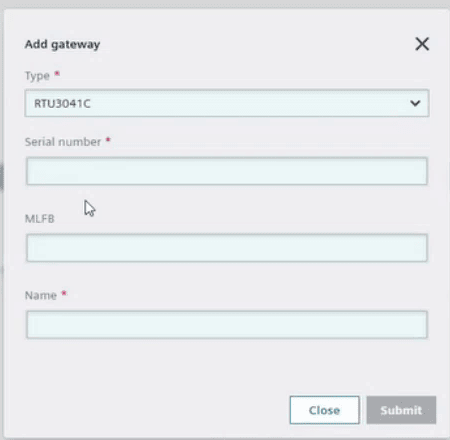
The screenshot shows an example gateway type. Select the type that matches your gateway.
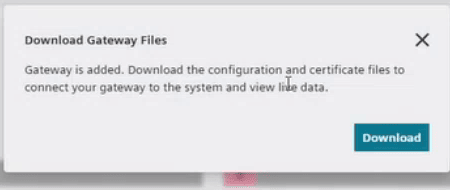
Download the connection package immediately
The onboarding workflow does not currently offer a later option to regenerate the gateway certificates. Download the package when it is first offered and keep it in a secure location. If you lose the package, contact support before deleting or recreating a gateway.
Sensors behind the gateway can be onboarded automatically from valid incoming telemetry. You do not need to add those sensors manually before the gateway publishes their data. The gateway itself must be onboarded first to obtain its connection credentials.
Step 2: Inspect the Connection Package
The package provides the connection settings, certificates, and payload schemas required by the gateway.
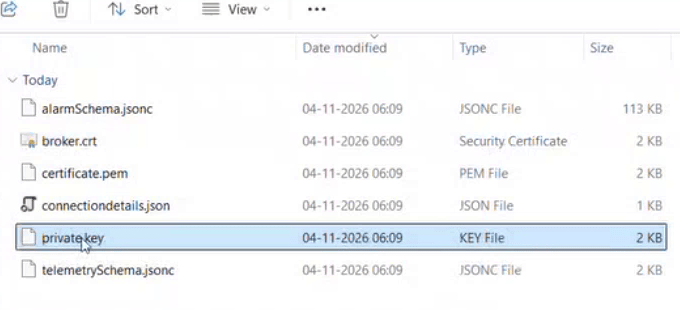
| Package Content | Purpose |
|---|---|
| Connection details JSON | Broker URL, client ID, MQTT version, telemetry topic, and alarm/event topic. |
| Broker CA certificate | Allows the gateway to verify the hub IQ broker's identity. |
| Gateway client certificate | Identifies this gateway to hub IQ. |
| Gateway private key | Authenticates the gateway together with its client certificate. |
| Telemetry JSON schema | Defines the telemetry payload, including required and optional fields and the array of sensor data. |
| Event JSON schema | Defines the payload for events published to the alarm/event topic. |
Use the actual values and files in your gateway's package. Broker addresses, client IDs, and topics are not shared example settings. Keep the private key and ZIP file out of source control, screenshots, and shared examples.
Step 3: Configure the Gateway MQTT Client
- Transfer the required connection details and certificates securely to the gateway.
- Set the broker URL and client ID exactly as supplied in the connection details JSON.
- Select MQTT 5.0 for the gateway-to-hub IQ connection.
- Configure TLS with the broker CA certificate, gateway client certificate, and gateway private key.
- Configure telemetry publishing to the supplied telemetry topic.
- Configure event publishing to the supplied alarm/event topic.
Use the credentials issued for this gateway. Credentials for a customer broker or an MQTT export target cannot replace this package. Check certificate validity before connecting and keep the gateway's credentials secure throughout their lifecycle.
Step 4: Prepare Telemetry and Event Payloads
Use the JSON schemas in the connection package as the authoritative reference for field names, types, and required values. Do not treat a telemetry payload as an event payload; each topic has its own schema.
The following annotated example shows the gateway metadata, device details, and process measurements in a telemetry payload. The identifiers and measurements shown are examples; replace them with your gateway's actual identifiers and readings.
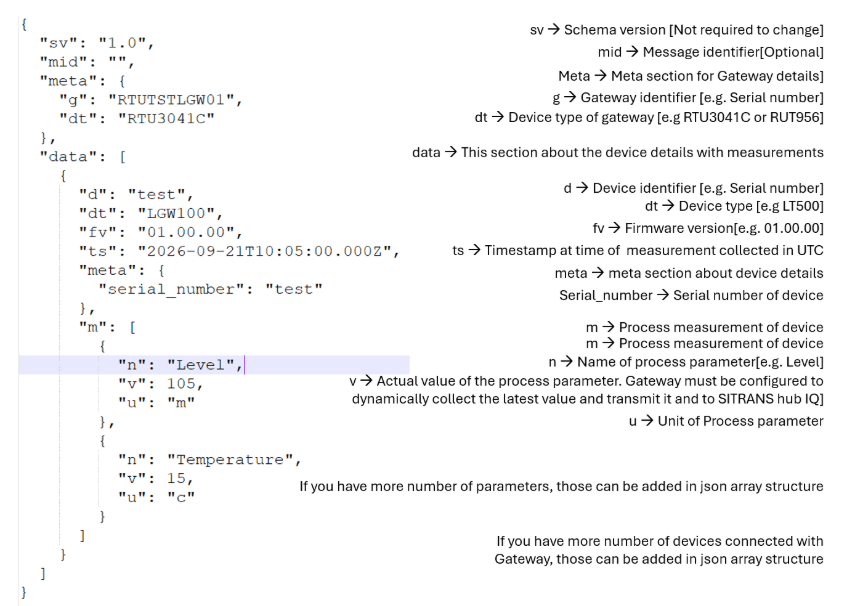
Add connected devices as entries in the data array and each device's process measurements as entries in its m array. The gateway must collect current process values and publish them in the measurement v fields.
Telemetry contains an array of sensor data. For each sensor, provide the identifiers and measurements required by the telemetry schema. Measurement entries use these fields:
| Field | Meaning |
|---|---|
n | Process value name. |
v | Process value. |
u | Process value unit. |
Measurement names and units must match the sensor type's process value configuration in hub IQ. Mismatched records can be discarded even when the gateway connects successfully. For integration assistance or questions about a schema, contact support.
Step 5: Verify Ingestion
- Connect the gateway's MQTT client using the downloaded settings and certificates.
- Publish telemetry that conforms to the supplied schema on the telemetry topic.
- Check the gateway in the hub IQ Device list. After data starts flowing, its status should change from onboarding to online.
- Open the gateway and confirm that the expected sensors appear beneath it.
- Check that the sensors' process values are being updated.
- If events are part of your integration, publish a schema-valid event to the alarm/event topic and verify its reception separately.
For supported gateway integrations, valid telemetry creates new sensors under the gateway automatically. Telemetry for an already onboarded sensor updates its data without creating another sensor. A connected MQTT client alone does not prove that the payload was accepted.
Troubleshooting
| Symptom | Checks |
|---|---|
| Connection package was not saved | Contact support. Do not assume that certificates can be regenerated from the device page. |
| Gateway cannot connect | Verify network access, broker URL, client ID, MQTT 5.0, certificate validity, and the certificate/key pair from this gateway's package. |
| Gateway remains in onboarding | Confirm that telemetry is being published to the supplied telemetry topic and conforms to its JSON schema. |
| Sensor is not created or measurements are missing | Check the sensor identifiers, required fields, and process value names and units against the telemetry schema and sensor configuration. |
| Events are missing | Use the alarm/event topic and event schema, not the telemetry topic or telemetry structure. |
To forward ingested sensor measurements to your own broker, continue with HubIQ to External Apps.