Managing monitoring lists
Existing monitoring lists aren't set in stone, they can be modified, copied, or deleted. You can find corresponding instructions in the following paragraphs.
Modifying monitoring lists
All the information provided during the monitoring list creation process can be modified at any time by any of the list's owners (or tenant admins). This includes the basic data, the monitored components, dependencies, and subscribers.
Modify basic data
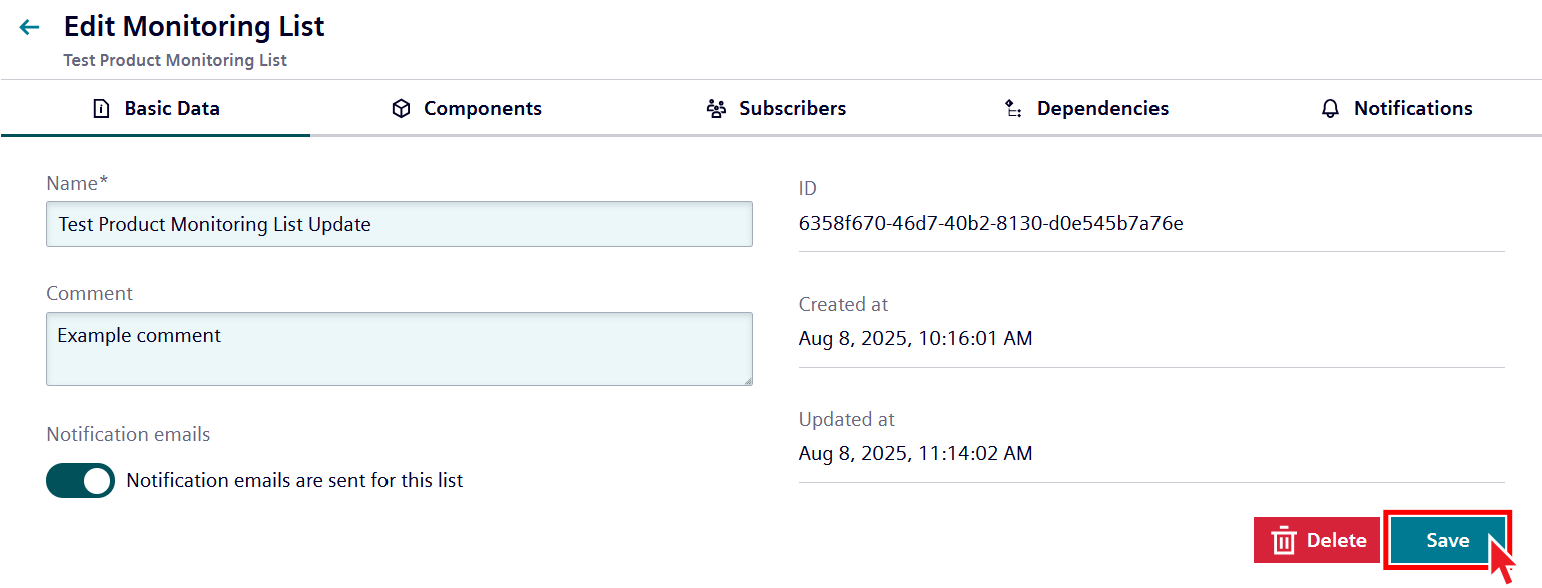
You can change the basic data of any monitoring list you are the owner of. This includes its name and the comment. For additional information regarding the single properties, please refer to the corresponding section of the monitoring list creation guide.
In order to change a list's basic data, select the desired monitoring list in the corresponding section of the Vilocify Portal, select the "Basic Data" tab (see screenshot) and update the name and the comment of the list. Once you are done, click on "Save" to update your monitoring list. Please note that only subscribers with the role "Owner" can modify the basic data of a list.
Modify components
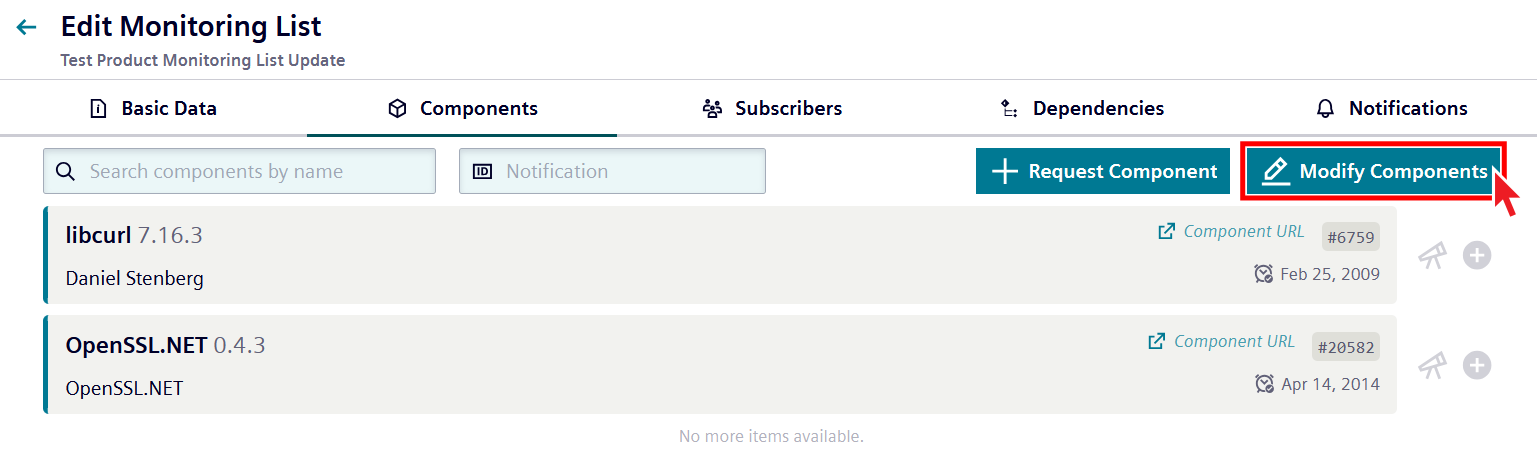
Components of a monitoring list can be changed at any time. This is useful in instances when you want to add a new one (for example, because a new asset has been added within your infrastructure) or replace one (for example, because you updated a library and would therefore monitor the new version). To change the components, select the desired monitoring list in the corresponding section of the Vilocify Portal, select the "Components" tab (see screenshot on the bottom left) and click on the "Modify components" button on the top right.
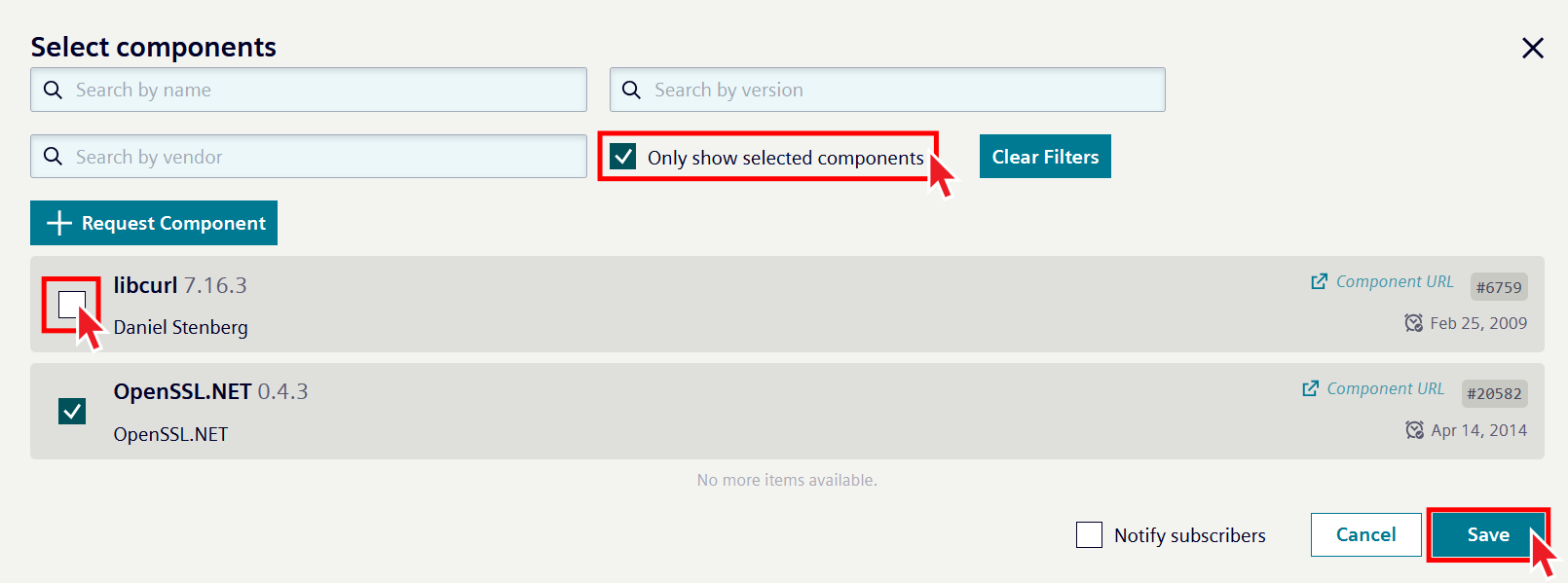
This will open a new window (see screenshot) where you can add components by searching and selecting them from the left grid, or removing existing ones from the right grid. Please note that only subscribers with the role "Owner" can modify the components of a list. For additional information please refer to the corresponding section of the monitoring list creation guide.
If you want to remove added components, click on "Only show selected Components," then deselect all unwanted components, and afterward save the updated list with a click on "Save."
Modify subscribers
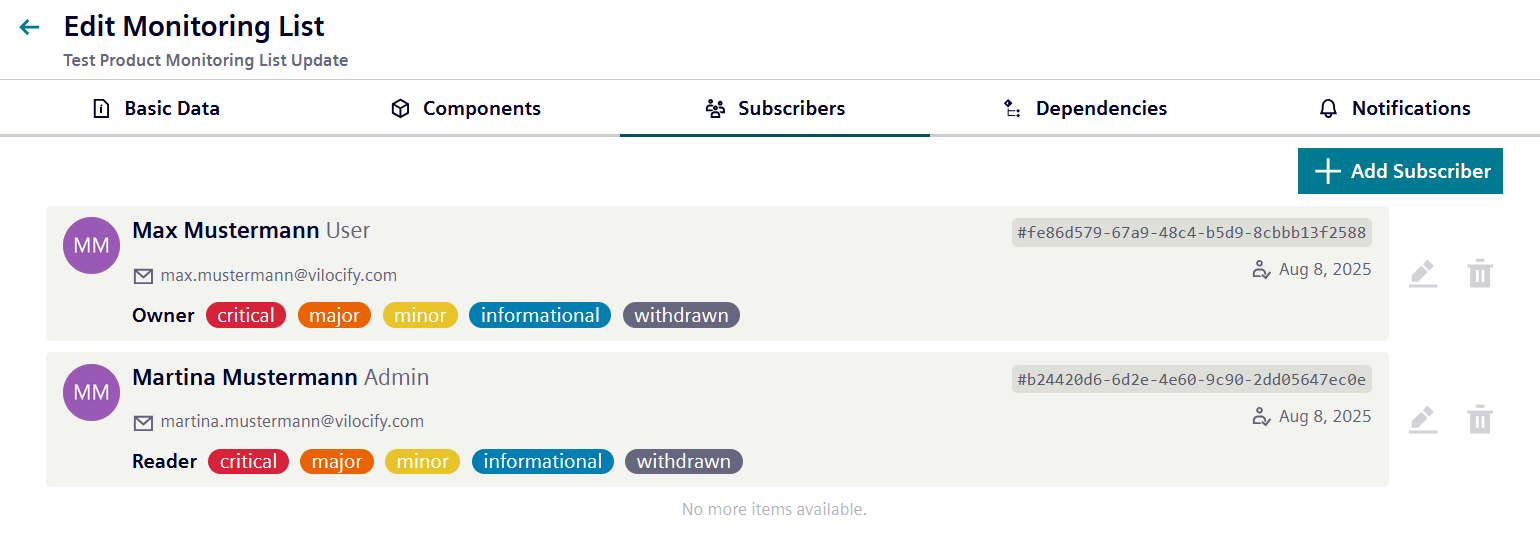
Subscribers of a monitoring list can be modified after its creation as well. New subscribers can be added, existing ones can be removed, their roles and notifications message priorities can be changed. To change a list's subscribers, select the desired monitoring list in the corresponding section of the Vilocify Portal, and then select the "Subscribers" tab (see screenshot on the bottom). From here you can do the following:
- Add a new subscriber by clicking on the "Add subscriber" button on the top and then search for the desired users.
- Changing an existing subscriber's settings by clicking on the pencil icon at the right of the corresponding row. From there you can:
- change a subscriber's role by selecting the corresponding option.
- change a subscriber's priorities by selecting the desired priorities.
- remove an existing subscriber by clicking on the "Remove" button.
- To delete a subscriber, click the trash can icon at the right of the row.
Please note that only subscribers with the role "Owner" can modify the subscribers of a list. For additional information please refer to the corresponding section of the monitoring list creation guide.
Modify dependencies
Owners of a list can create dependencies between monitoring lists within their organization by defining parent-child relationships between them. When such a parent-child dependency is set, any new notification affecting the child monitoring list will be included in the security notifications messages of subscribers of the parent monitoring list.
Warning
Anyone who can see the parent list, can see all child and descendant lists, even if they're not subscribed directly on the child list.
Monitoring list actions
It's furthermore possible to perform certain actions on monitoring lists.
Copy
This action allows to quickly create a new monitoring list, using the selected one as a reference to start from. Click on the copy icon (marked in the screenshot below) in the row of the monitoring list of which a duplicate should be created.
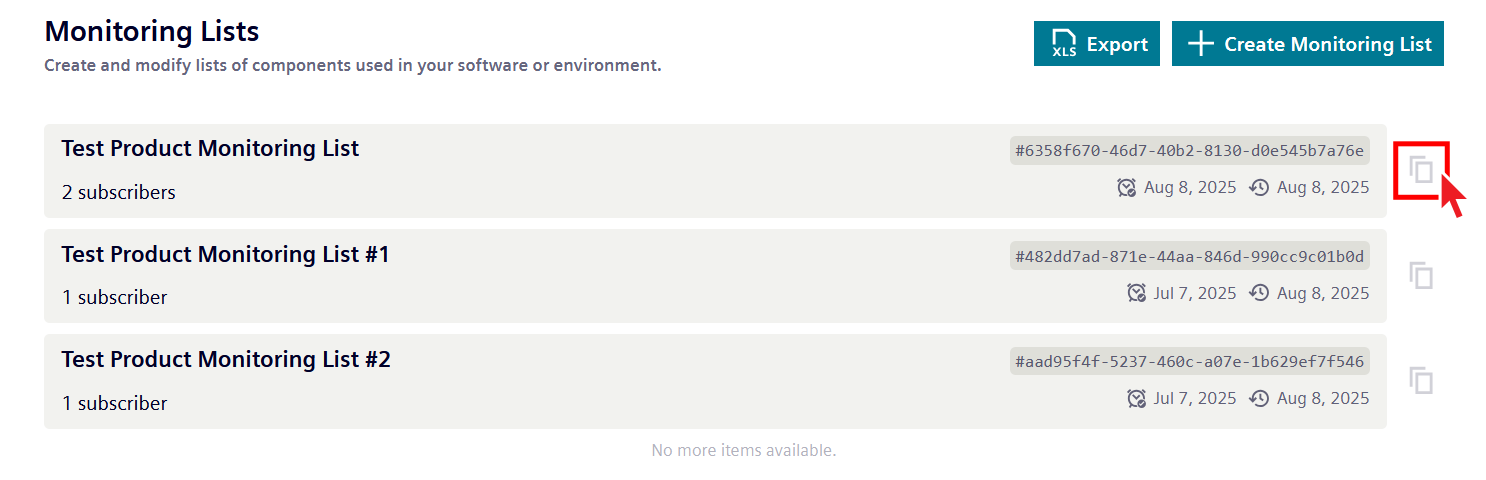
It will create a new monitoring list entry in the table, recognizable at the same name with "(copy)" added. To modify the new list, please follow the same instructions as an existing monitoring list would be modified.
Pause
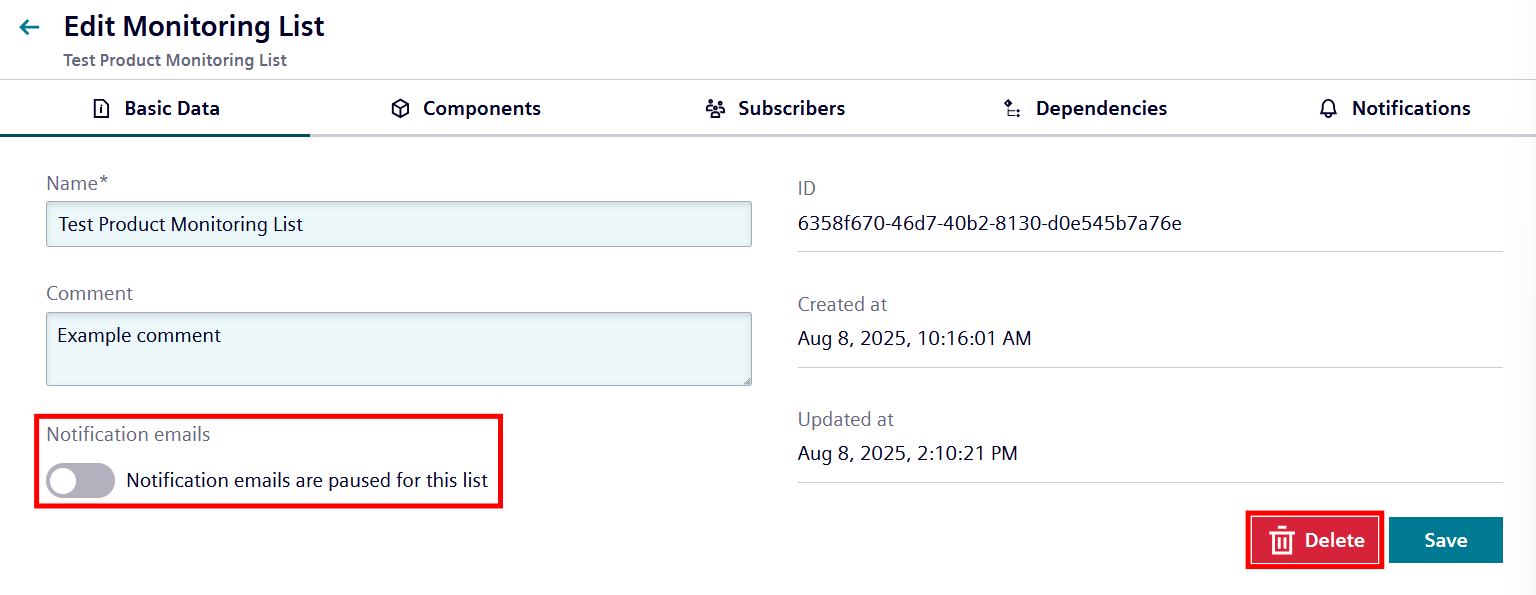
By pausing a monitoring list, the list will still be available within the Vilocify Portal, but it won't be included in the security notifications messages of subscribers assigned to it. To pause a list, disable the "Notification emails are sent for this list" section in the Basic Data overview, as marked in the screenshot at the bottom. Deactivated monitoring list are marked by a pause label in the table of all visible monitoring lists.
Delete
Clicking the red "Delete" button in the Basic Data overview will delete the monitoring list. Please be aware that the action affects all assigned subscribers and is irreversible.